Good Day!!!
Today we will be looking at Currency Setup in Dynamics AX 2009. Our agenda will be to learn following things.
1- Create currencies in Dynamics AX
2- Currency setup in General Ledger setup
3- Setting company default currency
Ok, now let’s start
1- Create currencies in Dynamics AX
To create currency:
Go to: General Ledger à Setup à Exchange Rates
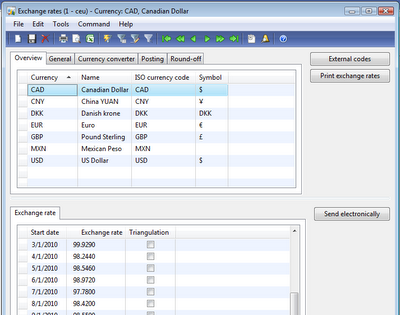
As you can see in above screen shot we have five tabs on this form. First is the overview tab. In this tab we’ll create new currency. To create new currency press Ctrl + N, click on Currency field write new currency short name (3 characters limit), in Name field write descriptive name for new currency, in ISO field select ISO currency code for new currency and in Symbol field enter symbol for new currency created.
In second section of the Exchange rates form, are the exchange rates for currency. You can define exchange rates for each day. If you want to use one exchange rate leave Start date field blank. AX will automatically use last exchange rate add, if multiple exchange rate are available.
Next is the general tab which shows same information as in Overview tab except the Gender field (Optional if you are not using Spanish check).
Third tab is the Currency convertor. Enable currency conversion by check mark on Conversion. Postfix and prefix are character you want to add after amount. Enter spaces before and after postfix and prefix fields to separate from amount.
After doing above setting we will get following result as in Chart of Accounts form in below screen shot. Refer to the currency format in "Balance" Column.
Third tab is Posting define Realized loss, Realized profit, Unrealized loss, Unrealized profit due to currency exchange rate.
These settings depends on your company policies and weather you are using foreign currency for billing and payments. I will be posting a detailed blog on this topic soon.
Last tab is Round-off as the name shows it’s about rounding off currency.

General rounding-off applies to all modules and there are separate settings for Account Receivable, Payables and Prices. You can read more about rounding in the end of this document.
2- Currency setup in General Ledger
Next, we will see Currency setup in General Ledger
In General Ledger module go to parameters then ledger tab you will see following settings:
In Express exchange rate Specify how much of your currency equals to 100 units of foreign currency. Maximum penny difference is for adjustment of penny after currency conversion in primary currency.
3- Setting up company default currency
To set company default currency
Basic à Setup à Company Information à Other tab à Currency à Currency
You can select any currency you have created in currency exchange form.
Miscellaneous
Rounding in Exchange rates form:
We have amount 6827.28. Below table describe how Round Off and Rounding form works.
| Rounding form | Round off .01 | Round off .10 | Round off 1.00 | Round off 10.00 | Round off 100.00 |
| Normal | 6827.28 | 6827.20 | 6827.00 | 6830.00 | 6800.00 |
| Upward | 6827.28 | 6827.30 | 6828.00 | 6830.00 | 6800.00 |
| downward | 6827.28 | 6827.20 | 6827.00 | 6820.00 | 6800.00 |
That’s all for now.
Good Bye!!


