Thursday, February 11, 2016

To Reuse Void check number if journal is not posted.


Check reuse functionality in Dynamics AX is only available for US region.

Step1- Reject payment : Journal Lines > Payment status > Rejected.


Step2- Change payment status to None.

Step3- Go to AOT > tables > BankChequeTable.

Step4- Search Check number in CheckNum filed.

Step5- Change CheckStatus to created.

Step6- Go to Cash and Bank Management > Common > Check

Step7- Search check number. Check number should have status Created.

Step8- Select Check and Press Delete.

Step9- Enter Check number in From and To field.

Step10- Write Delete in Text box and press ok.


All Done!

You can now use this check number again.


Note: Test this solution on your test environment first. 

Sunday, January 31, 2016

RULE TYPE IN BATCH RULE

During configuration of General Ledger in GL parameters form Batch Transfer rules has to be defined. When I was configuring it and clicked new, a line was created with "Document" in Rule type filed, since we need to create a synchronous posting so I had to change it to Company but I was unable to do it. After tying to do it multiple times I googled this issue and found below post and run the below job:

-----------------
static void AST_SubledgerJournalTransferRuleCreate(Args _args)
{
   SubledgerJournalTransferRule::createDefaultRule();
   info( "Created" );
}
-------------

After running this job record was created with rule type company.

Below is the link of Forum post:

https://community.dynamics.com/ax/f/33/t/107262  

Friday, January 9, 2015

Database Entity Relationship Diagrams

Found a very good source for Dynamics AX 2012 ERD.

This "AxErd" website hosts entity relationship (ER) diagrams for core tables of the application modules in Microsoft Dynamics AX 2012 R2. You can use the site to quickly list all the foreign key relationships for a table, involving both its child and parent tables. You can also use the site to determine which module a table is in, and which tables are in a module.
http://www.microsoft.com/dynamics/ax/erd/ax2012r2/

Wednesday, August 13, 2014

Dynamics AX 2012 Missing Labels

After upgrading to Dynamics AX 2012 R2 C7 it might happen and few label are missing from the application due to which a very annoying situation has be been faced.

for this kind of issue solution is provided on msdn blog at below link.

http://blogs.msdn.com/b/axsupport/archive/2013/07/12/missing-syp-labels-after-upgrading-to-ax2012-r2-cu6.aspx


Thursday, March 20, 2014

ERROR IN INVENTORY RECALCULATION "Account number for transaction type Catch weight loss account does not exist"

During inventory closing I had an error which stopped posting recalculation result to ledgers.


As the error shows that Catch weight loss account is missing.  I checked item group for posting and surprised to see that main accounts are defined for this posting type.


So I digged it further and checked its record in inventtrans. But the problem was which transaction to check so for this I checked settlement that were under progress.


Here I found that there is one Transaction in which system used CW loss account. So I opened that transaction in Inventtrans. and checked what mainaccounts does this transaction has.


And we found that there was no ledger account assigned to CW loss account posting. Now the question was where to update that main account.

Above is the screen shot of Inventsettlement table. As we can see clearly that OperationsLedgerDimension for the same transaction is missing. This field contains the Recid of mainAccounts in which adjustments are to be posted. So I updated it with the recid of mainaccount.

And then Resume recalculation and this resolved error.

What I think is that mainAccount in Item group posting was updated after recalculation utility was run. 


Tuesday, October 22, 2013

Windows 8 App for Microsoft Dynamics :: Microsoft Dynamics Business Analyzer

Description

Microsoft Dynamics Business Analyzer provides an insightful dashboard that enables you to view and interact with SQL Server Reporting Services (SSRS) reports without requiring you to log on to your Microsoft Dynamics ERP solution. Choose from a set of default reports based on your selected role or personalize the application with the reports that are most important to you.

Features

  • Connect to SQL Reporting Services to display Microsoft Dynamics AX 2012 R2, Microsoft Dynamics GP 2013 and Microsoft Dynamics SL 2011 FP1 reports.
  • Interact with reports using a variety of report actions, such as copy, edit, view and refresh.
  • Open Microsoft Lync Windows 8 edition from a report to initiate a conversation with someone about the report.
To read more about it click here

Tuesday, October 8, 2013

Finding out which tables were updated by an operation in AX

At times when troubleshooting Microsoft Dynamics AX you need to know which tables were updated by a particular operation, for example after performing a posting. This could be if you want to be sure that all the right tables are updated correctly after an upgrade, if you have unexpected results on one customer/vendor etc or if you have made an update the system and you want to be sure that everything is ok.

Read complete blog from here

Introducing cumulative update 6 for Microsoft Dynamics AX 2012 R2

Microsoft continues its commitment to customer success through a regular release cadence of cumulative updates which is comprised of rollups of released hotfixes, regulatory updates, and existing business process enrichments. click here to read complete post.

Good bye :)

Tuesday, September 10, 2013

Microsoft Dynamics AX 2009 Support

Microsoft Product Lifecycle Search

Mainstream* support for Microsoft Dynamics AX 2009 is extended as shown to provide all customers with the standard lifecycle transition timeline. The mainstream support expiration date will be April 14, 2015.
For additional details, please click here.


Let's Go time to plan for transition!!!

Wednesday, July 10, 2013

Microsoft Dynamics Lifecycle Services Released!

Microsoft Dynamics Lifecycle Services (LCS) is designed to manage and optimize customer implementations – powered by Azure. The customer creates project workspaces for implementation, upgrade and maintenance activities, and will invite implementation experts from partner organizations and Microsoft into these workspaces for the execution of related activities. Partners will be able to create projects for learning and presales purposes. This enables partners to build out expertise around LCS, and demonstrate this in sales cycles.

Take it for a test drive at https://lifecycleservices.dynamics.com or https://lcs.dynamics.com.

AXPulse launches News Bar for Microsoft Dynamics AX 2012

Stay up to date with the latest organization and business updates. Setup news for a specific legal entity or for specific date intervals using the standard MS Dynamics AX 2012 UI. See more on http://www.axpulse.com/product/news-bar/

Saturday, April 27, 2013

Dynamics Ax Musings: Dynamics AX 2012 Compile Times

Dynamics Ax Musings: Dynamics AX 2012 Compile Times: As I'm sure most of you are aware, compile times in Dynamics AX 2012 are a concern with more functionality being added.
Read complete post here

Thursday, April 25, 2013

Currencies not available in new legal entity of Dynamics AX 2012R2

Just found that Currencies are not be available until you set up General ledger parameters for your legal entity.Read TechNet Ref here. http://technet.microsoft.com/en-us/library/gg731914.aspx

Tuesday, March 26, 2013

Installing Dynamics AX Import Export Framework

I was trying to install Dynamics AX Import Export Framework but it took whole week due to bugs and errors below is the list of links that help me get going and install it. :)

To Resolve Prereq checks issue:
https://community.dynamics.com/ax/f/33/t/103669.aspx#.UVF4IlcuD2o

To Resolve error in AXUtil:

http://helpdeskgeek.com/how-to/fix-not-recognized-as-an-internal-or-external-command
https://community.dynamics.com/ax/f/33/t/103754.aspx#.UVF4hFcuD2o

Thanks for visiting.

Tuesday, March 12, 2013

Data Partitioning in AX 2012

While I was importing test data on Server I was stopped by the word "Data Partition", so did little bing on term and found a very informative article on it.

Microsoft Dynamics AX 2012 R2 enables data isolation by using data partitions. For example, an organization has several subsidiaries. If the management of the organization does not want employees of one subsidiary to have access to the data for other subsidiaries, data partitions can provide the boundaries that are required for data isolation.

To read full article click here.

Saturday, August 4, 2012

Update SID in Dynamics AX 2009

When Dynamics AX is shifted from one Domain to Other domain you have to update its SID before you log into AX.

To check SID use below command:


"wmic useraccount get name,sid"

and upadate SID in User info Table.

Monday, July 30, 2012

Solution for Error: The inventory quantity to match for packing slip xyz item 123 cannot be reserved.

Solution concluded from below two postings:

1: http://community.dynamics.com/product/ax/f/33/t/27545.aspx
2: http://dynamicsuser.net/forums/p/45819/231704.aspx

First check packingslip number from purchase order. Then goto AOT--> Data Dictionary-->Tables-->Purchparmsubline TABLE.

Search packingslip number in DocumentID field delete it.

Worked for me :).

Sunday, October 30, 2011

Few days ago while working with importing customizations and re-freshing AOT in Dynamics AX 2009, we stuck with the following error "Illegal data conversion from original field [field names]Unable to convert data types to anything but character field type (0 to 4)." Found a great blog on that topic. Hope, will solve, if you  stuck with similar problem. Click on link read blog http://daxline.blogspot.com/2011/07/how-to-fix-illegal-data-conversion-from.html.

Tuesday, September 6, 2011

Dynamics AX 2012 licensing


Every company must cope with software licenses these days. Good understanding of license programs can bring significant savings; unawareness can comprises needless expenditures or leads up to violating license agreements and relevant consequences.
Dynamics AX 2012 comes with a new license model, which is similar to licensing of other Microsoft products and it brings also other advantages. This article has set a target to introduce basic concepts of Dynamics AX 2012 licensing and to quote links to sources of more detailed information. Read complete blog at http://dev.goshoom.net/en/2011/09/dynamics-ax-2012-licensing/.

Monday, August 1, 2011

Currency Setup in Dynamics AX 2009


Good Day!!!

Today we will be looking at Currency Setup in Dynamics AX 2009. Our agenda will be to learn following things.

1-      Create currencies in Dynamics AX

2-      Currency setup in General Ledger setup

3-      Setting company default currency

Ok, now let’s start

1-      Create currencies in Dynamics AX
To create currency:
Go to:  General Ledger à  Setup à Exchange Rates
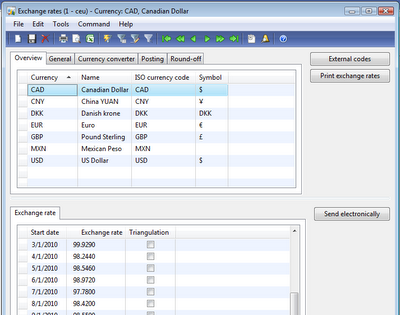

As you can see in above screen shot we have five tabs on this form. First is the overview tab. In this tab we’ll create new currency. To create new currency press Ctrl + N, click on Currency field write new currency short name (3 characters limit), in Name field write descriptive name for new currency, in ISO field select ISO currency code for new currency and in Symbol field enter symbol for new currency created.
In second section of the Exchange rates form, are the exchange rates for currency. You can define exchange rates for each day. If you want to use one exchange rate leave Start date field blank. AX will automatically use last exchange rate add, if multiple exchange rate are available.
Next is the general tab which shows same information as in Overview tab except the Gender field (Optional if you are not using Spanish check).
Third tab is the Currency convertor. Enable currency conversion by check mark on Conversion.  Postfix and prefix are character you want to add after amount. Enter spaces before and after postfix and prefix fields to separate from amount.


After doing above setting we will get following result as in Chart of Accounts form in below screen shot. Refer to the currency format in "Balance" Column.


Third tab is Posting define Realized loss, Realized profit, Unrealized loss, Unrealized profit due to currency exchange rate.


These settings depends on your company policies and weather you are using foreign currency for billing and payments. I will be posting a detailed blog on this topic soon. 

Last tab is Round-off as the name shows it’s about rounding off currency.

General rounding-off applies to all modules and there are separate settings for Account Receivable, Payables and Prices. You can read more about rounding in the end of this document.
2-      Currency setup in General Ledger
Next, we will see Currency setup in General Ledger
In General Ledger module go to parameters then ledger tab you will see following settings:

In Express exchange rate Specify how much of your currency equals to 100 units of foreign currency. Maximum penny difference is for adjustment of penny after currency conversion in primary currency.
3-      Setting up company default currency
To set company default currency
Basic à Setup à Company Information à Other tab à Currency à Currency
You can select any currency you have created in currency exchange form.

Miscellaneous 
Rounding in Exchange rates form:
We have amount 6827.28. Below table describe how Round Off and Rounding form works.
Rounding form
Round off .01
Round off .10
Round off 1.00
Round off 10.00
Round off 100.00
Normal
6827.28
6827.20
6827.00
6830.00
6800.00
Upward
6827.28
6827.30
6828.00
6830.00
6800.00
downward
6827.28
6827.20
6827.00
6820.00
6800.00

That’s all for now.
Good Bye!!